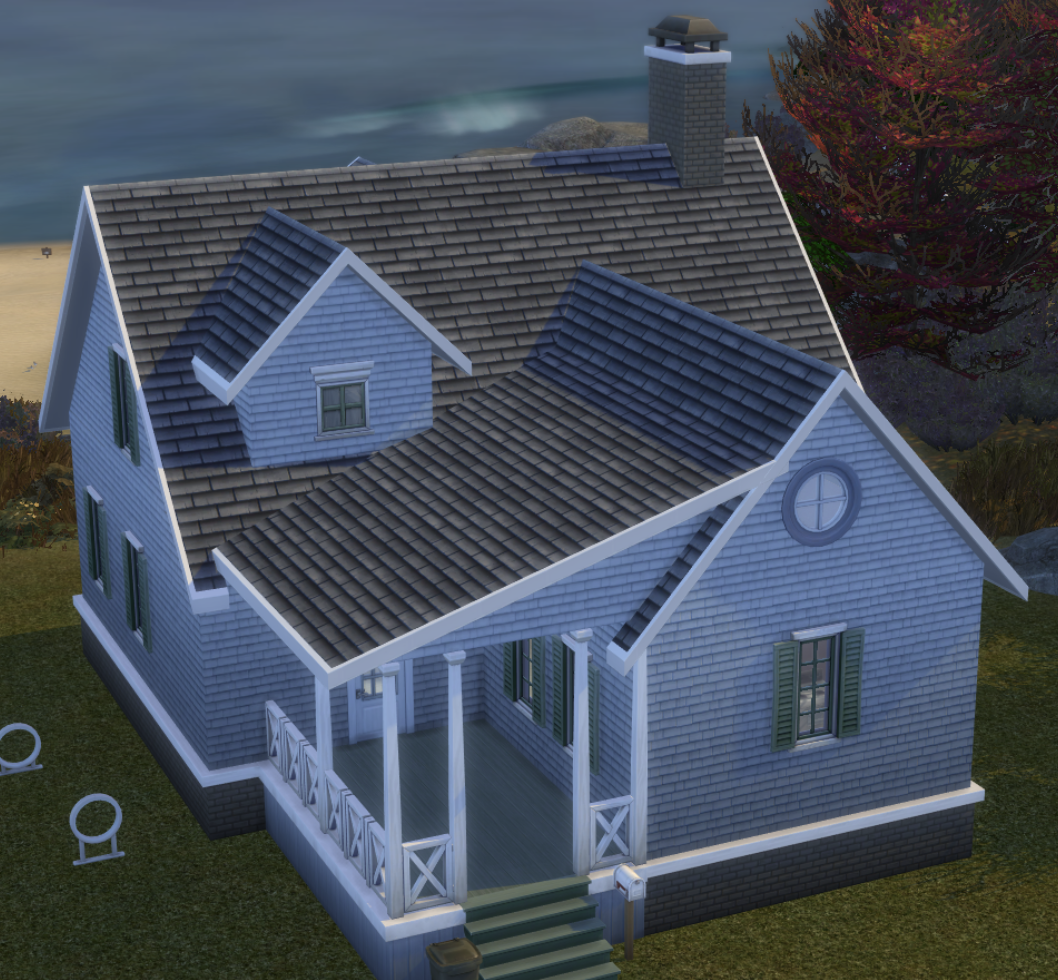
📸 How to Take a Screenshot in The Sims 4
Last updated by cluse 11 months ago
On PC (Windows):
- In-game shortcut: Press C on your keyboard. → The screenshot will save automatically to your Documents > Electronic Arts > The Sims 4 > Screenshots folder.
- Alternative: Press Print Screen (PrtScn) to copy the whole screen, then paste into Paint or any image editor.
On Mac:
- In-game shortcut: Press C while the game is running. → Saved in Documents > Electronic Arts > The Sims 4 > Screenshots.
- Mac shortcut: Press Command + Shift + 3 (whole screen) or Command + Shift + 4 (select an area). → Saved to your desktop.
On Console:
- PlayStation: Press the Create (or Share) button → Save Screenshot.
- Xbox: Press the Xbox button → Y to take a screenshot.
Tips:
- Press Tab first to enter Camera Mode for cleaner, HUD-free shots.
- Screenshots taken with C are higher quality than system screenshots.
- You can use C even while paused.
Font Size